Work in Classic functions
This topic covers general information on working in Classic functions. For help with classic functions, type the function name in the help system  tool.
tool.
Open a Classic function
You can open a Classic session by opening a Classic function via the Menu option on the Home session.
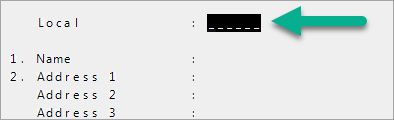
When you first open a Classic function, the cursor will be either at the first editable field on the tab or at the bottom at the select line. The field or select line with the cursor is highlighted in black.
If you have permission to access a Classic function, but there is no data in your system related to that function, the function will not display in a Classic session tab.
View a record
To view information that is already in the system, such as a code or criteria, type the code or criteria in the first field (often this field doesn't have a number next to it) and press Enter or Tab. The e the remaining fields update with the data on file and the cursor moves to the select line.
Add or update a record
To add a new record into the system, for example, a new code, complete the tab by typing text and pressing the Enter or Tab keys to move to the next field. See Keyboard shortcuts and function keys for symbols you can type in a field or at the select line to perform certain actions like delete text in a field or move to the previous field.
- Required Fields—If a field is required and you leave it blank, a message displays at the bottom of the tab. Press
Enterto return to the field line and update the field. See Standard messages for a list of standard messages.
-
Fields with Cross-references—Some fields have a cross-reference look-up so you can select an item from a list of available items in the system. To access a field’s cross-reference look-up window, type
ALLat the field and pressEnter. In the cross-reference look-up window, type the sequence number of the item you want at the select line and pressEnter.Note: Not all fields have cross-reference look-ups.
Save changes
To save your changes, type F (for file) at the select line and press Enter or Tab. This applies to most functions, however refer to the function's select options for filing or saving. See Select line options for a list of options common to most Classic functions.
Enter or Tab. For example, to file (or save) changes, type F at the select line and press Enter.
 SEE ALSO